
September 24, 2026
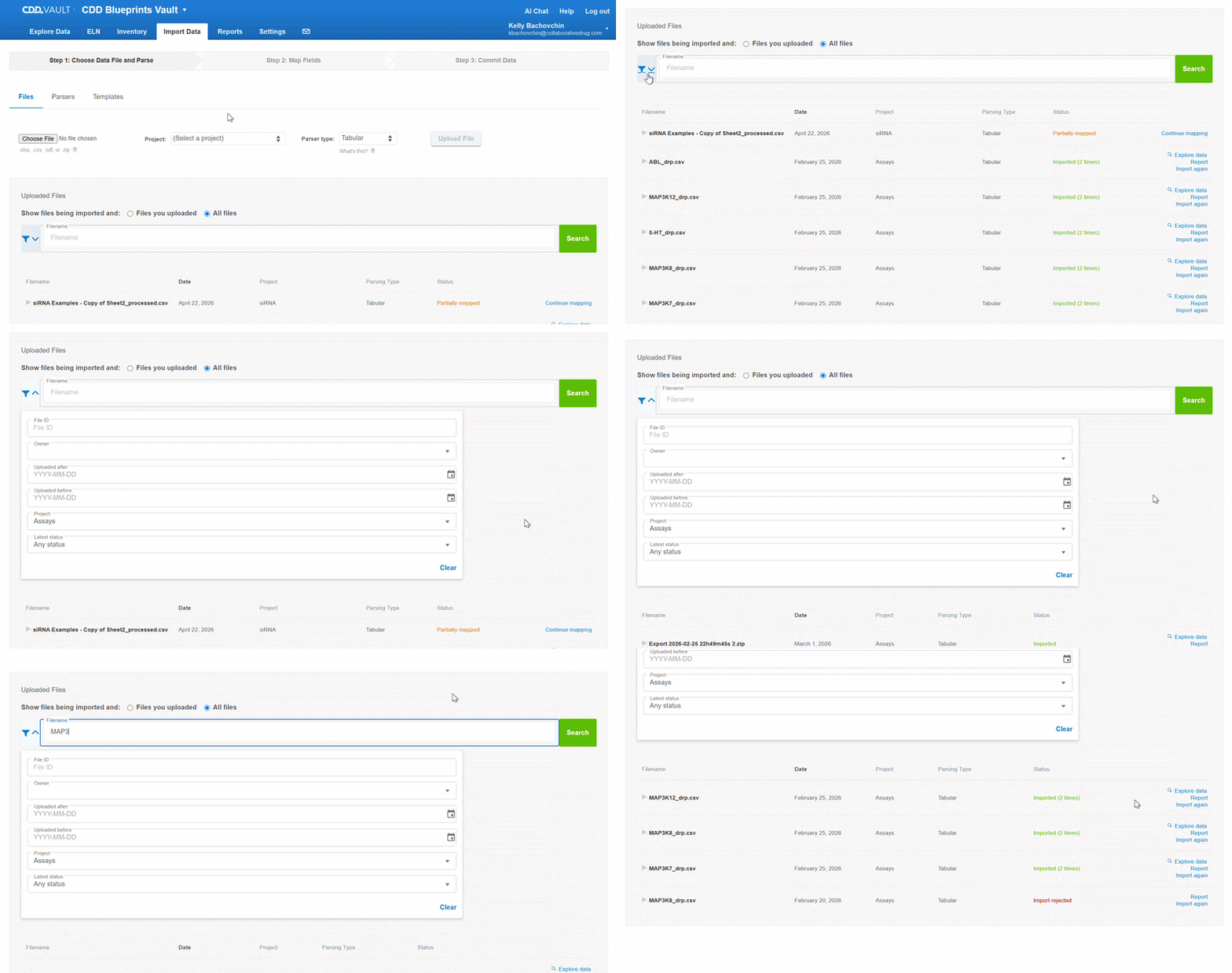
Search the Import Data files list:
You can now quickly locate uploaded files by filename, and also filter by file ID, owner, date, project, and current status. Use the radio buttons above the keyword search bar to focus on files you uploaded or files imported by all users. Matching files are returned so you can easily revisit and investigate previous imports without paging.
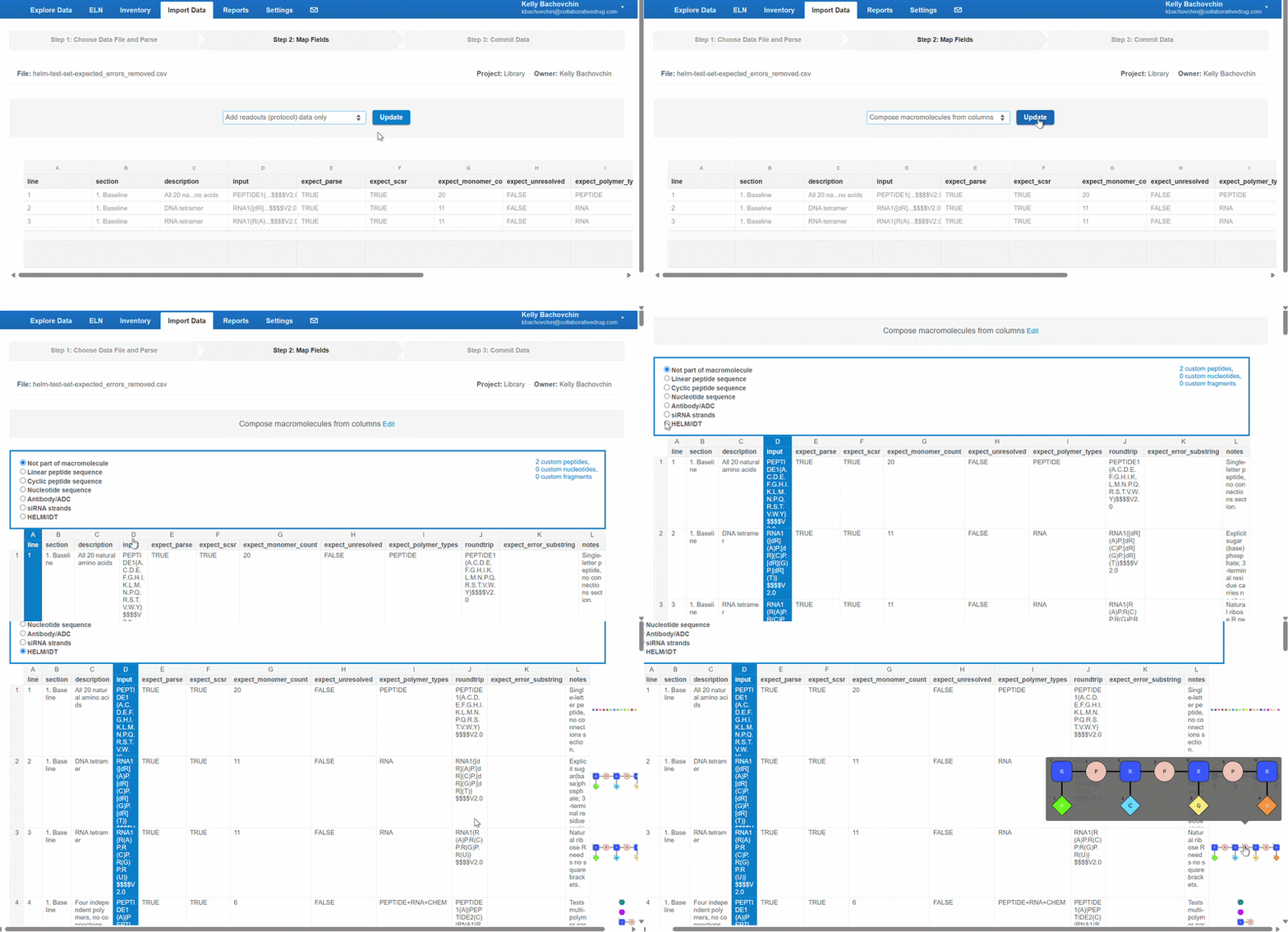
Compose macromolecules using HELM or IDT notations in bulk:
The compose macromolecule tool on the Import Data tab now supports industry standards like HELM and IDT notations. Map a column in an import file to the ‘HELM/IDT’ option and the macromolecule will render as a preview on the right-hand side of the file preview. After reviewing the composed macromolecules, process the import to proceed to mapping other data fields for registration.
Previously, macromolecules could only be composed using text-based sequences. Now it’s trivial to transfer entire collections from external sources.
Inventory
Inventory location barcode search:
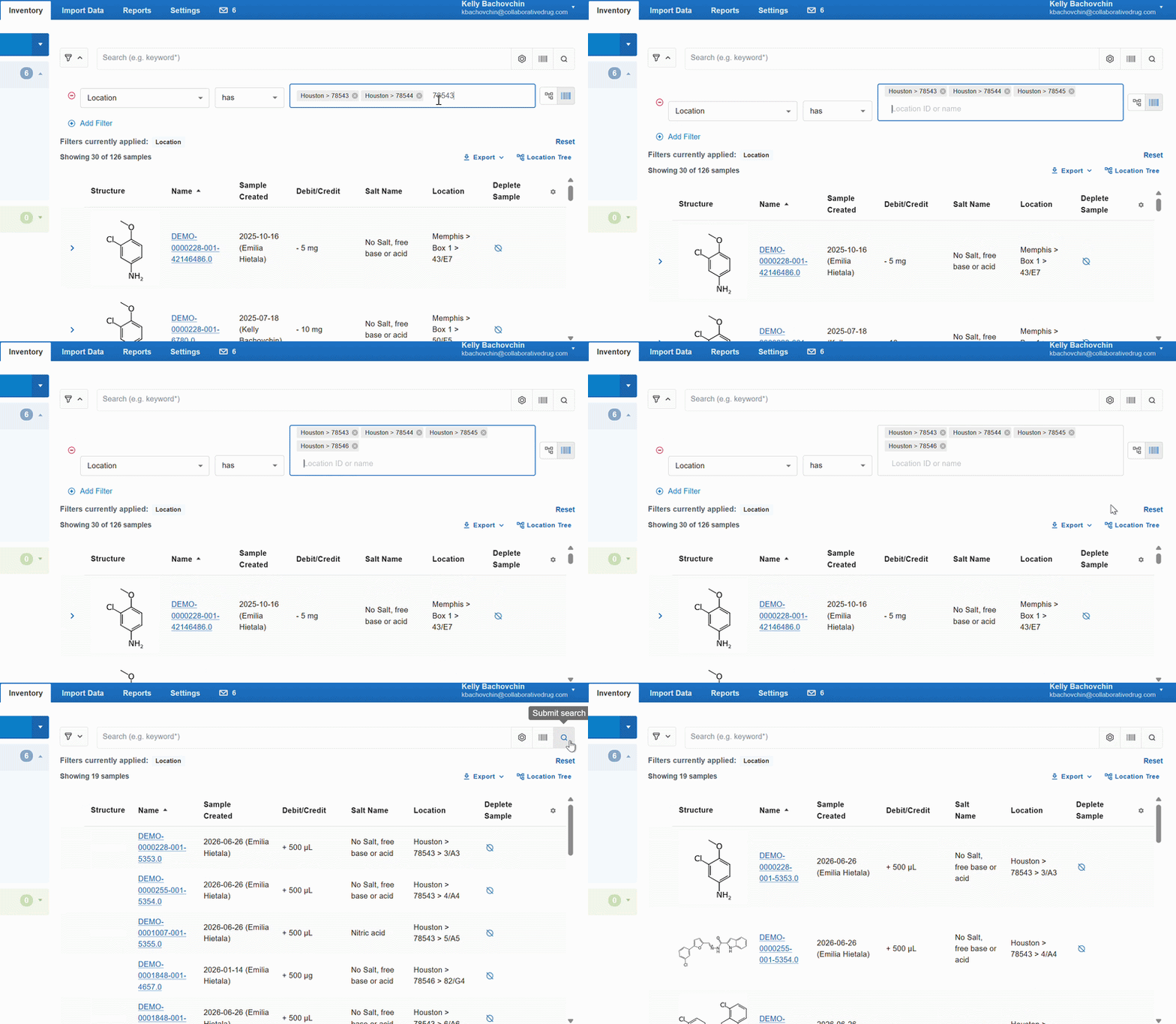
Scan location barcodes to pull up the samples stored there, with no typing required. Scan several locations to see all samples in one list. Works with barcodes generated by CDD Vault or externally.
Add a location filter to the Inventory index page and choose the barcode scanning mode. Scan a location barcode or paste the unique name/ID for a location and run the search. The resulting sample list is filtered based on the scanned locations.
Export sample locations as columns:
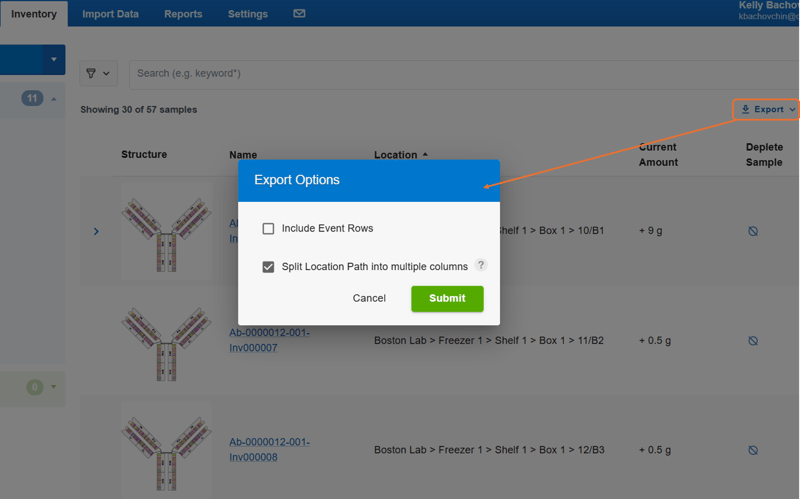
Sample locations now export as separate columns that match the import format. Search for a set of samples and add the location field, export, update locations in a spreadsheet, and re-import to relocate hundreds of samples at once. Just be sure to select the check the box to ‘Split location path to multiple columns’.
Clear out empty locations:
Retired locations no longer have to clutter your inventory. Once a location is empty (all samples moved, depleted, or deleted), Vault Administrators and Inventory Administrators can delete it from the Settings->Vault->Sample/Inventory Fields page.
ELN
Your go-to ELN searches, one click away:
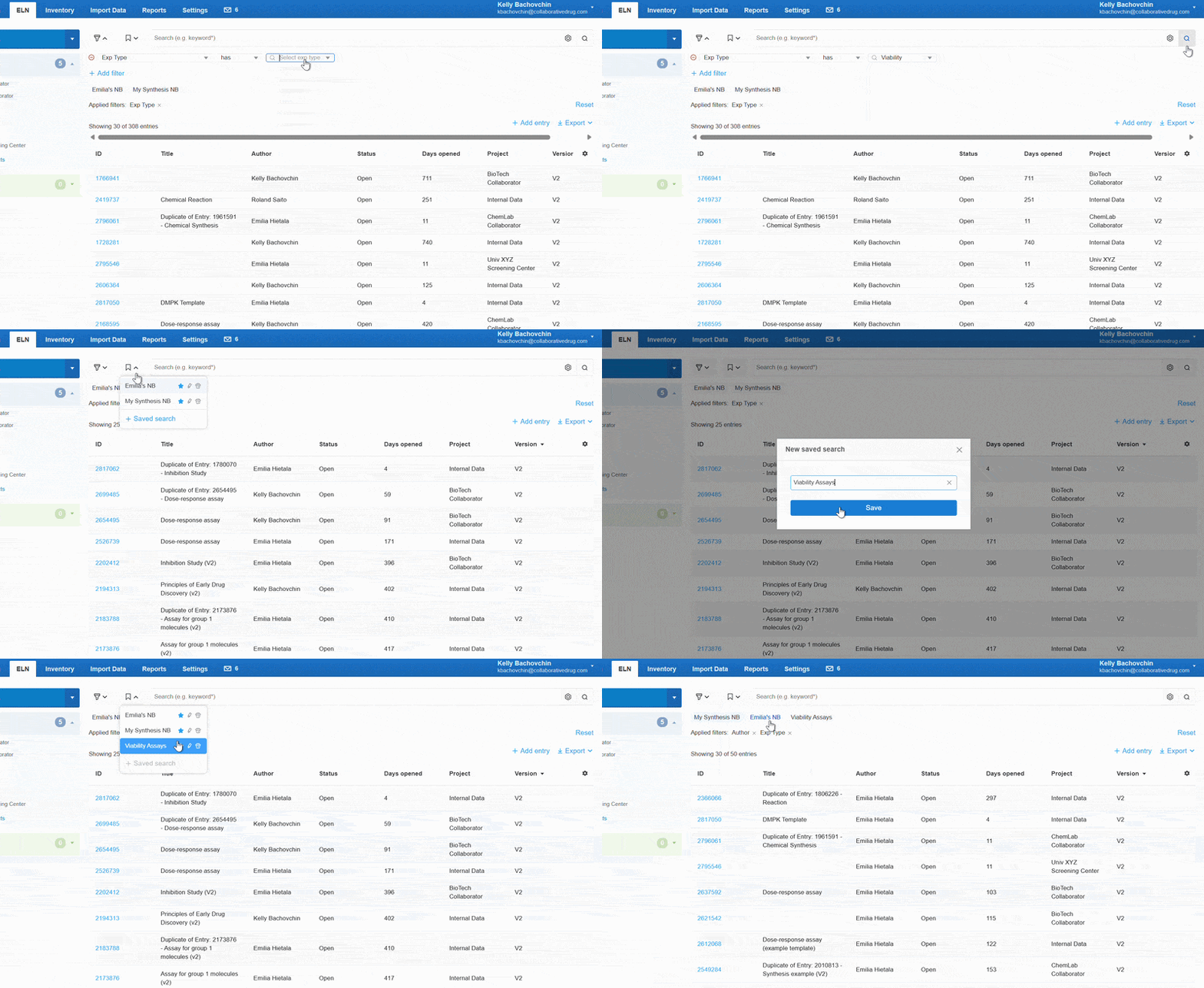
Save any ELN search, including filters, keywords, and structure criteria, and pin your favorites to a quick access menu so you never have to rebuild them. Run your search then click the bookmark icon next to the search bar to save it. Click the star icon on a saved search to add it to the quick access menu under the search bar.
Reorder reagents/components in the stoichiometry table:
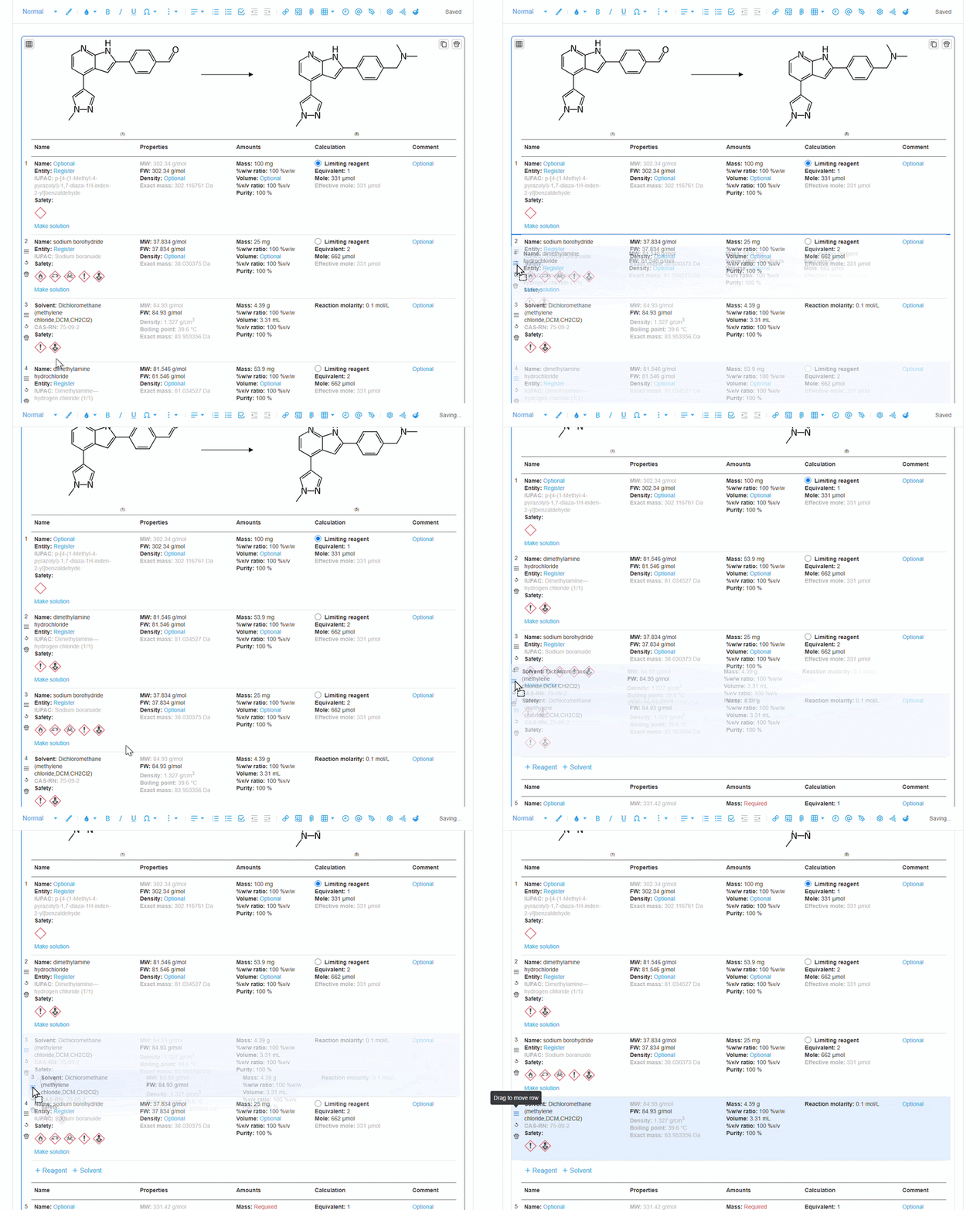
Group reagents and components in the order that makes sense for your reaction by dragging rows in the stoichiometry table. In a table with three or more reagents, click the three-line icon on a row and drag it into place.
See macromolecules directly on the ELN index:
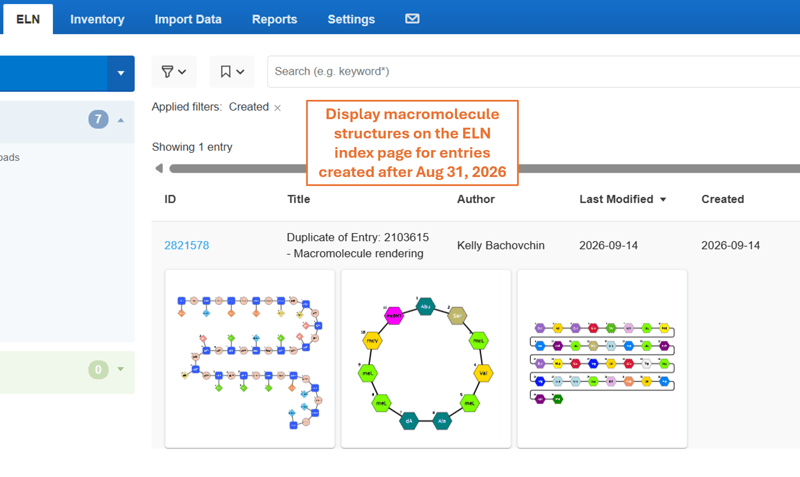
Browse entries and easily see the associated sequences. Add macromolecules to a newly created entry by drawing them with the structure editor or by adding a link to an already registered entity.
Visualization
Carousel through plots in a column:
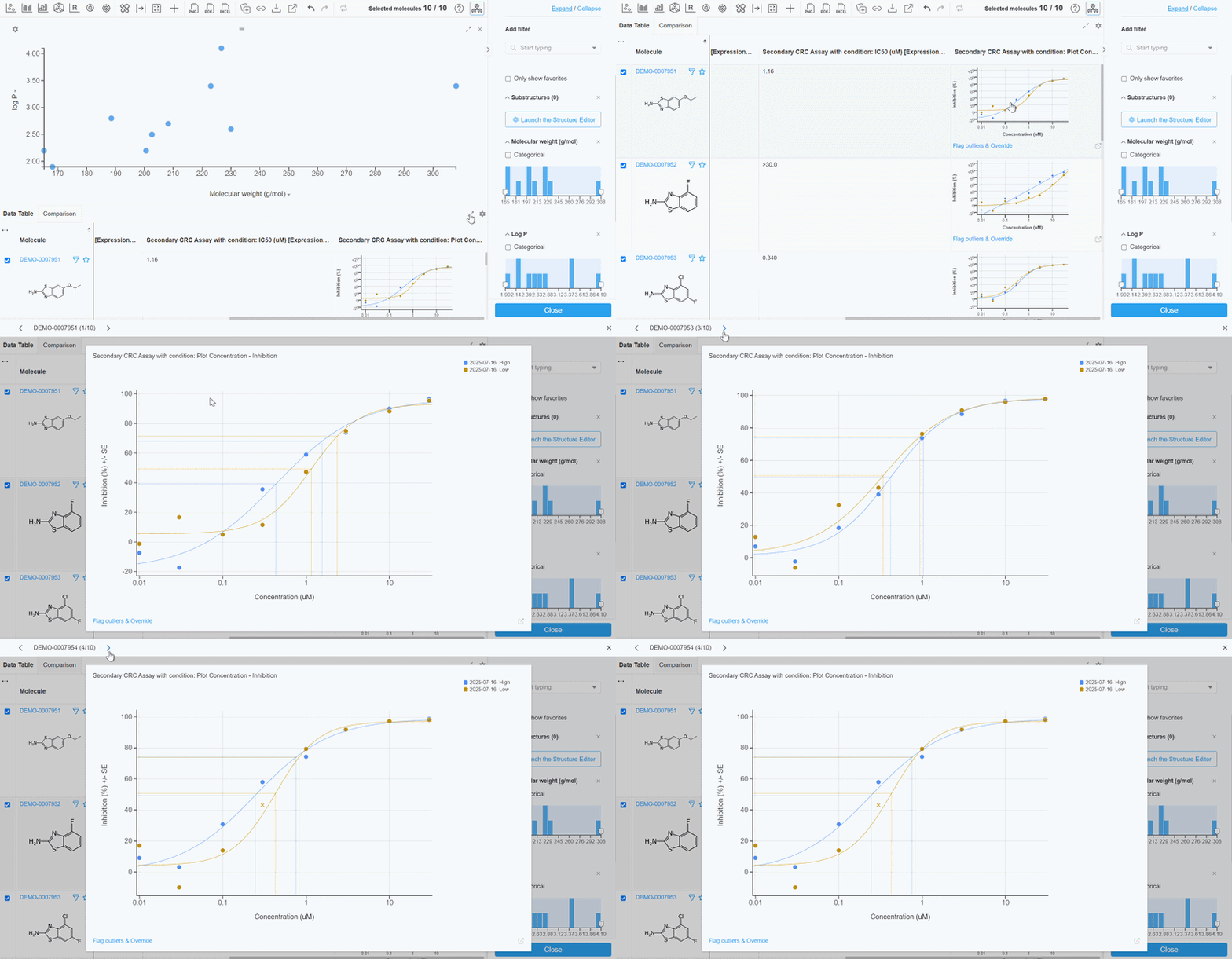
Quickly review expanded plots within a single column. Click on a plot to expand, then use the arrows at the top of the page or the keyboard arrow keys to switch between plots. Continue the review process by clicking the ‘flag outliers and override’ link in the bottom left corner of the pop up window for a given plot.
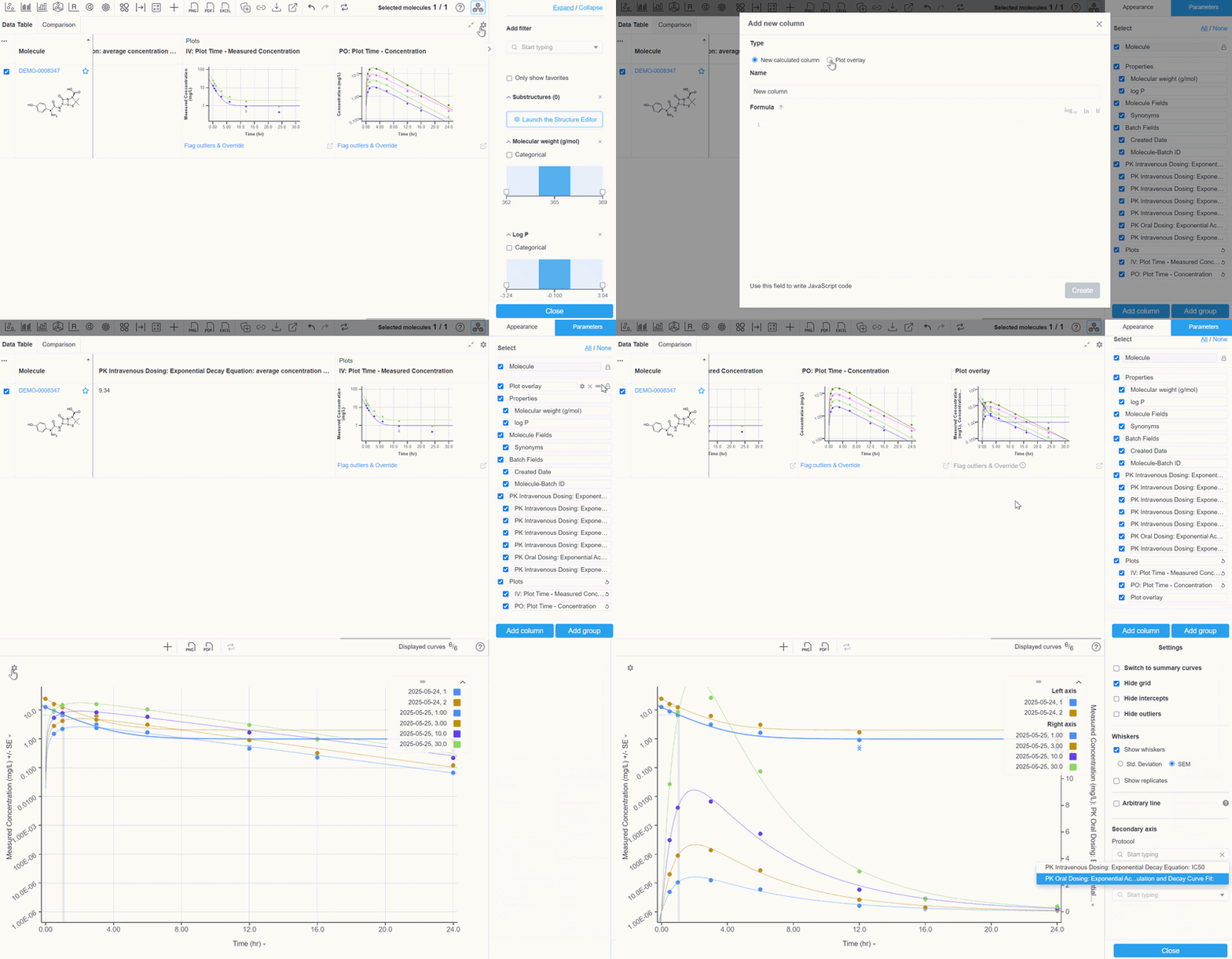
Overlay plots for every row in one step:
Add a plot overlay column to a report table and every row gets its overlay at once, so you can compare the selected protocol plots together across the whole table. In the table settings, go to the Parameters tab and use the button at the bottom to add a column. Choose plot overlay and select the protocol plots to overlay. The new column is inserted first; drag it in the parameters list to move it. Add a secondary axis in the plot pop-up if needed.
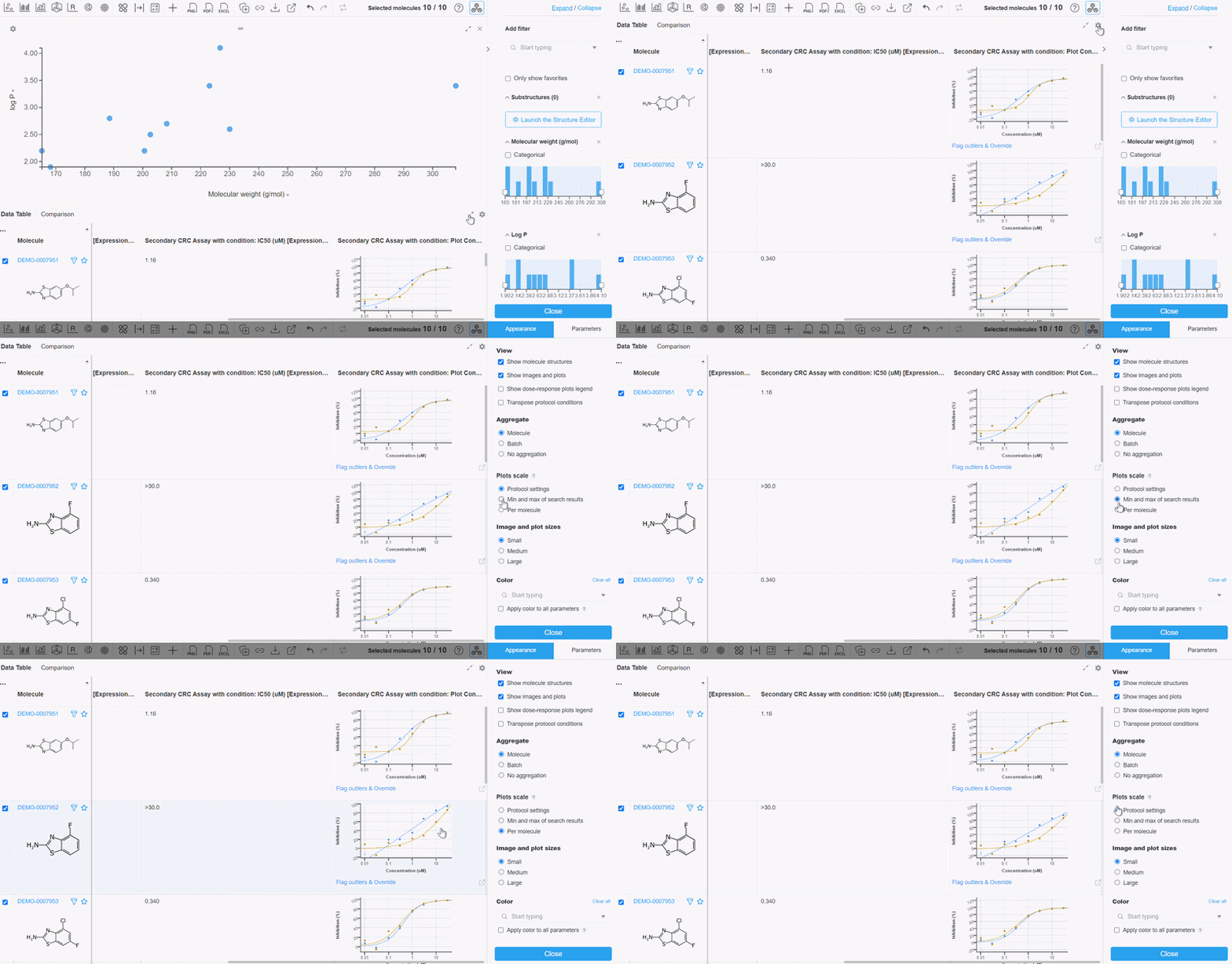
Adjust plot scales to properly inspect your curves:
In the table settings, choose a plot scale for all plots. The three options include the scale set in the protocol settings, the min and max of the search results, or a per molecule scale. Toggle between them at any point.
API
API export of SCSR sequences and properties:
GET molecules calls that return macromolecules will also return the SCSR molfile and calculated properties for that entity.
Return sample and inventory fields with GET Fields:
The GET fields API call now includes sample and inventory fields.
To provide feedback on features, or if you have questions and want to schedule a demo, please contact support@collaborativedrug.com.